Eight Windows utilities. One tray icon.
Clipboard history, a volume slider for every app, a system monitor, window snapping, an app switcher and screenshots, in one small native app that sits next to your clock.
Click the tray icon.Everything you copied, every snip you took, every app's volume. One panel, opened in a blink.
One app instead of five
A clipboard manager, a mixer, a monitor, a snapper and an Alt+Tab replacement, as one process with one settings window.
Native, not a browser
Rust and Slint compiled to a single executable. No Electron, no webview, no .NET runtime.
Nothing leaves your PC
No telemetry and no network calls. Your clipboard history stays in a folder you can open.
Every panel, a click from the tray.
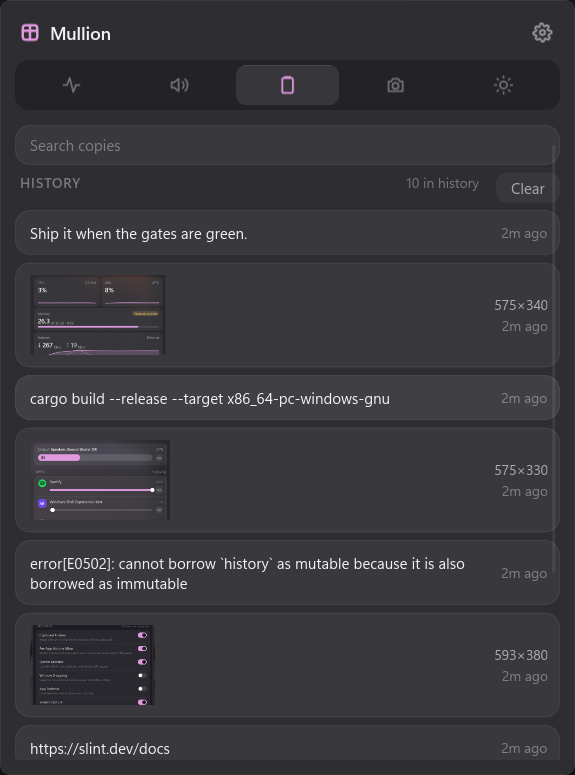
Copy it once, paste it whenever.
Your last 200 copies, text and images, kept across restarts. Type to search, click one to put it back on the clipboard. Copies a password manager marks private are never recorded.
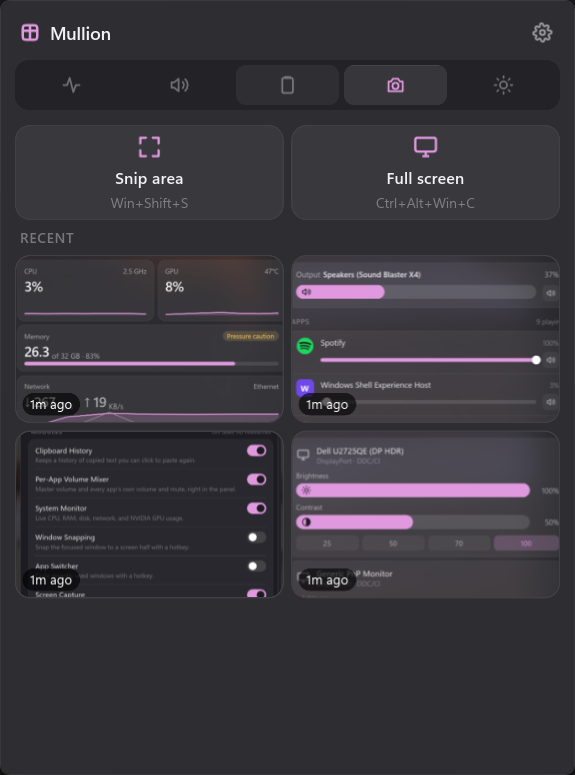
The snip from an hour ago, one click away.
Every Win+Shift+S snip lands in a grid. Click one and it's on your clipboard again. Full-screen captures go to a PNG and the clipboard by hotkey.
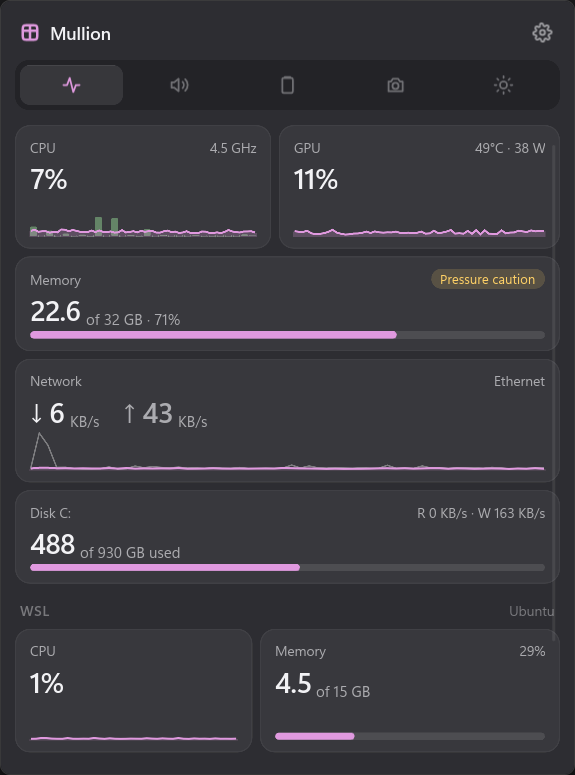
See what your PC is doing.
CPU with a bar for every thread, GPU load, temperature and power on any vendor, memory pressure, network and disk, each with a live graph. Turn on WSL to see every distro too.
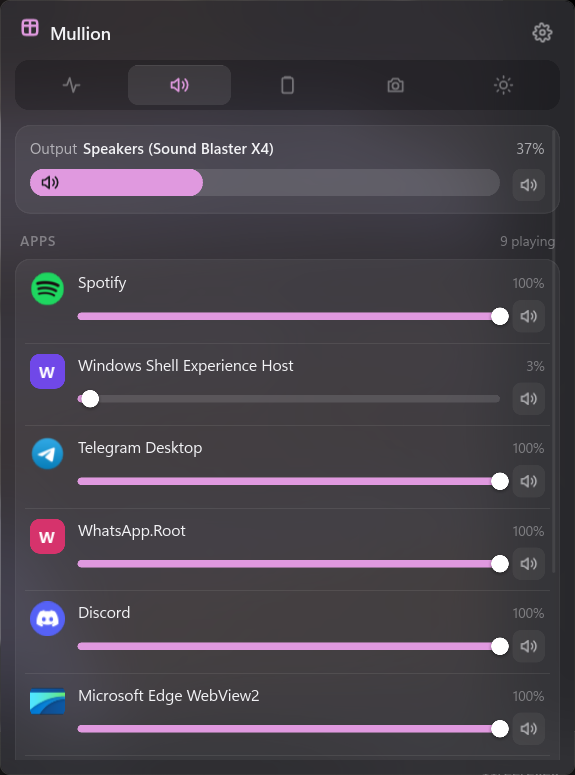
Every app gets its own slider.
Master output plus each app that's playing sound, with its icon and a mute button. Hide the ones you never touch.
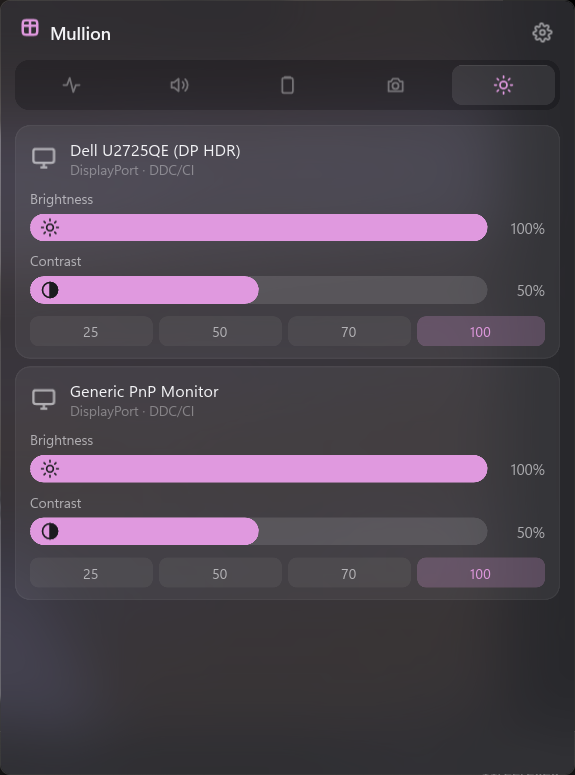
Brightness without the monitor buttons.
Set an external monitor's brightness and contrast over DDC/CI, right from the tray. Support varies across monitors, docks and KVMs, so it's off until you turn it on.
Switch off what you don't use.
Each module runs on its own. Turn one off and it starts no threads and installs no hooks. Settings live in a plain config.toml you can read and back up.
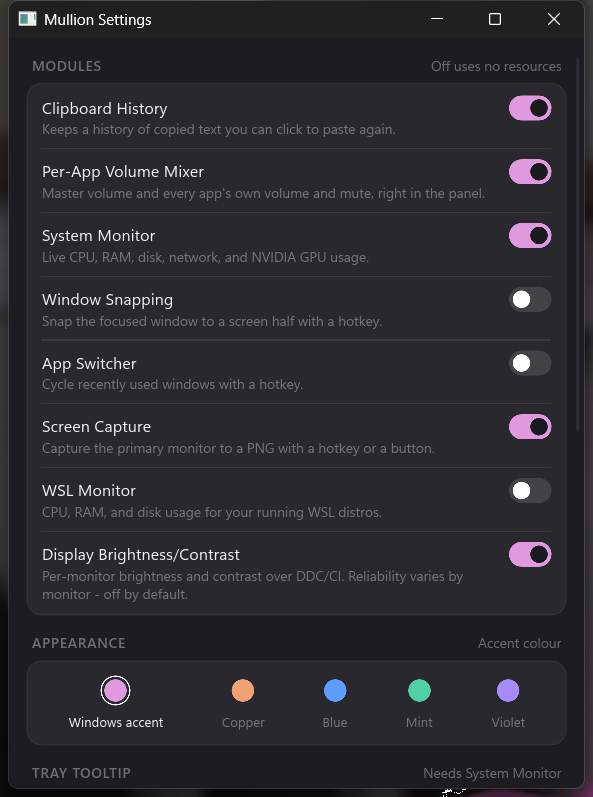
All eight, each with its own switch.
Clipboard history
OnThe last 200 copies, text and images, searchable and kept across restarts.
Screenshots
OnRecent snips in a grid, one click to copy again. Full-screen capture by hotkey.
Volume mixer
OnMaster volume plus every app that's playing sound, with its icon.
System monitor
OnCPU, GPU, memory, network and disk, each with a live graph.
Window snapping
OnSnap a window to the left, right, top or bottom half with a hotkey.
App switcher
OnAn Alt+Tab replacement with live previews of each window.
WSL monitor
Opt-inCPU, memory and disk for each WSL distro, which Task Manager can't show.
Display control
Opt-inExternal monitor brightness and contrast over DDC/CI.
Nothing leaves your machine.
- No telemetry
- Mullion doesn't phone home, check in, or send usage data. It makes no network connections at all.
- Your copies stay yours
- Clipboard history is saved in %LOCALAPPDATA%\mullion\clipboard. Clear deletes every saved copy.
- No admin prompt
- It installs per-user into %LOCALAPPDATA%\Programs\Mullion and uninstalls from Add/Remove Programs.
- Off really means off
- A disabled module starts no threads and installs no hooks. It isn't hidden; it isn't running.
- Settings in a plain file
- Everything lives in %APPDATA%\Mullion\config.toml, which you can read, back up, or edit.
- Open source, MIT licensed
- Every line is on GitHub. Read it, build it yourself, or fork it.
This page keeps the same promise: no analytics, no web fonts, no scripts from anywhere else.
Installed in a minute.
Windows warns you about the installer the first time. Here's why, and how to check it yourself.
-
Download the installer
Get Mullion-Setup-0.2.0.exe from the latest GitHub release, built from a tagged commit by GitHub Actions.
-
Check the checksum
Optional. Each release has a
.sha256file next to the installer. Compare it with:Get-FileHash .\Mullion-Setup-0.2.0.exe -
Get past SmartScreen
The installer isn't code-signed, so Windows says "Windows protected your PC". Click More info, then Run anyway.
-
Find it in the tray
Mullion starts next to your clock. Open Settings from its menu to choose your modules.